milim

Free. No app to install.

Learn Hebrew, word by word.

Read short stories and play games in real Hebrew. Tap any word to see what it means and hear it. Every word you learn grows a little world of your own.

Make your account Try a word

The Learn screen: a path of little isometric objects, each on its own plinth, with stars under each story and game stops branching off. One line of Hebrew with a speaker button beside it, a new word picked out in colour, and its English underneath.

Try it — no account needed

Tap a word

A real line from the first story. Tap any word to see what it means, then hear it.

! , ?

Tap a word.

All the words
בוקר
morning
אור
light. “Morning of light”: how you answer “good morning”
מה
what
שלומך
your well-being. מה שלומך? means “how are you?”
חבר
friend (a male friend)
שלי
my, mine

The whole line: “Morning! How are you, my friend?”

That's what reading in Milim is like, a line at a time. Make your account to keep going.

How it works

A slate plinth that grows into a green island, one Hebrew word at a time.

Tap the flag in the top right of any page and type one blunt line about what feels off.

Put it on your home screen

Milim is a website, not an App Store app: nothing gets installed. Adding it puts an icon on your phone that opens it full screen, without the browser bar. You can delete the icon any time. Open this page on your phone, then pick your browser.

On iPhone Safari

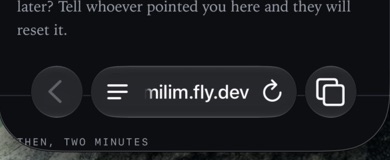
  1. Tap the menu button — the three lines, left of the address in the bar at the bottom.
    Safari's bottom bar: a back arrow, the menu button with three lines left of milim.fly.dev, and the tabs button.
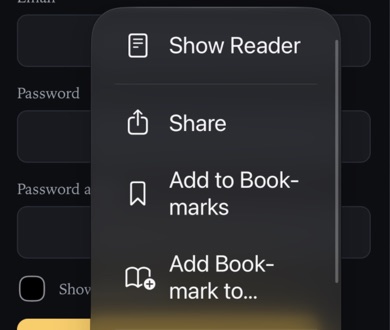
  2. Tap “Share”.
    The menu open, listing Show Reader, Share, Add to Bookmarks and Add Bookmark to.
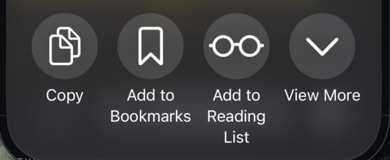
  3. Tap “View More” — the arrow pointing down, at the end of the first row of buttons.
    A row of share buttons: Copy, Add to Bookmarks, Add to Reading List and View More.
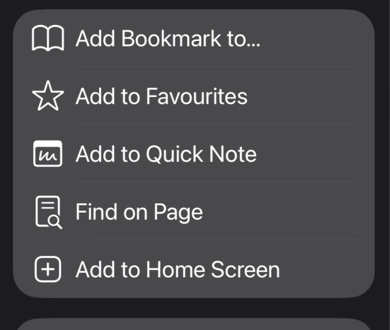
  4. Scroll down and tap “Add to Home Screen”. It is in the second group of rows.
    A list ending with Add to Home Screen, marked with a plus in a square.

On iPhone Chrome

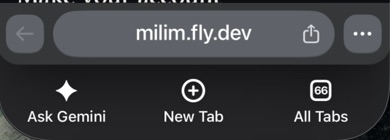
  1. Tap the share icon inside the address bar — the box with an arrow, at the right end of the address. The three dots beside it are a different menu.
    Chrome's bottom bar: the address milim.fly.dev with a share icon at its right end, and three dots beside it.
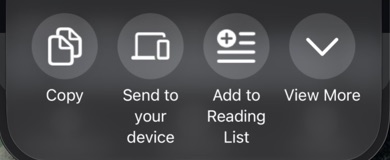
  2. Tap “View More” — the arrow pointing down, at the end of the first row of buttons.
    A row of share buttons: Copy, Send to your device, Add to Reading List and View More.
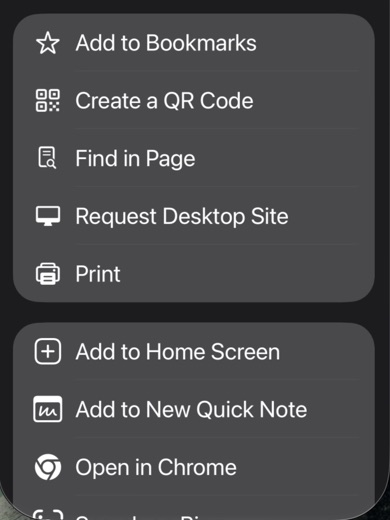
  3. Scroll down and tap “Add to Home Screen”. It is the first row of the second group.
    A list with Add to Home Screen at the top of its second group, marked with a plus in a square.

Then, in both

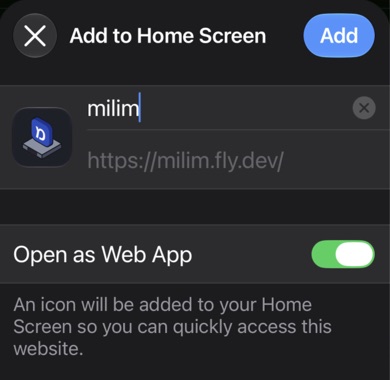
  1. Leave “Open as Web App” on, then tap “Add”. Both browsers show this same sheet, and it is on already.
    The Add to Home Screen sheet: the name milim, the address milim.fly.dev, the Open as Web App switch on, and the Add button at the top right.
  2. Tap the new Milim icon. Sign in with your email and password. The home-screen icon keeps its own sign-in, separate from the browser's, so it asks once — after that it remembers you.

On Android

  1. If you see “Install milim” above, tap it, then tap “Install”. That's all.
  2. Otherwise, in Chrome, tap the three dots at the top right, then “Add to home screen” (some phones say “Install app”). If it asks, choose “Install”.
  3. Open Milim from the new icon and sign in with your email and password. Like on iPhone, it asks once.

Start with one word.

Make your account Sign in